This article summarizes the breaking and functional changes that occur when migrating workflows from the Workflow Designer as a Desktop app to the web-based Workflow Designer, and outlines the actions required to update your workflows.
Breaking changes
The breaking changes may cause validation errors or functional differences and/or require manual redesign of workflows after migration.
Removal of system variables
What has changed
The following system variables are no longer supported in system activities, where no user is involved: Assign Data, Email, Web Service. If any of these system variables are referenced in a system activity, they are migrated as NULL, which can create logical gaps within the workflow:
WF_ASSIGNED_TO
WF_NOTIFICATION_DATE
WF_EXPIRATION_DATE
WF_LOGGED_IN_USER
WF_RECEIVED_ON
In data assignments within a Task activity these system activities are still supported and available.
At a glance: activities with variables removed
During migration, the system variables listed above are removed from the system activities at the following locations:
Email activity:
Subject
Body
Conditional outputs - Simple query - first and third column
Conditional outputs - Advanced query
Condition activity:
Condition - Simple query - first and third column
Condition - Advanced query
Conditional outputs - Simple query - first and third column
Conditional outputs - Advanced query
Assign data:
System variable source
Expression source
File cabinet source/ File cabinet destination - WHERE clause third column
Local data connector source - WHERE clause third column
File cabinet source/Local data connector source - match rows - expression
Index table source - WHERE clause third column
Conditional outputs - Simple query - first and third column
Conditional outputs - Advanced query
Web service:
SOAP:
Parameters
REST:
Route
Query parameter
HTTP header
HTTP body
Conditional outputs - Simple query - first and third column
Conditional outputs - Advanced query
Examples:
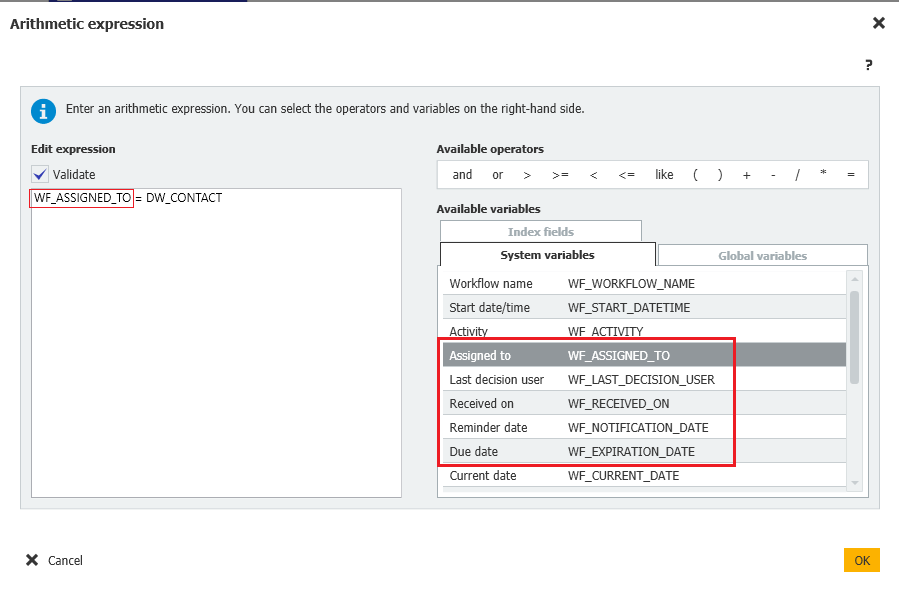
In the Workflow Designer as a Desktop App, you may use an expression with a variable of the type WF_ASSIGNED_To.
.png)
In the new, web-based Workflow Designer, the variable WF_ASSIGNED_TO is not supported anymore and therefore removed after migration.
What is the impact
Validation may fail after migration if workflows reference variables that are no longer supported.
Documents are no longer routed as expected in the workflow.
The values of the variable are permanently removed during migration.
Required action
To restore the workflow after migration and republish it, follow these steps:
In the section DocuWare Configurations > Workflow Designer open the migrated workflow.
Identify all activities that reference a missing variable.
Edit the activity with one of the following options:
Use custom workflow variables.
Edit the workflow structure.
Use the new Trigger User variable, if applicable:
.png)
The steps to preserve WF_ASSIGNED_TO values vary by configuration:
If the variable WF_ASSIGNED_TO was used after any task, follow these two steps:
In web-based Workflow Designer, store the assigned person in a global variable within the Task dialog.
Use that global variable in subsequent activities.
If the variable WF_ASSIGN_TO was used after the start activity and before the first task, replace the variable WF_ASSIGNED_TO with the new system variable Trigger User.
Restore permission control with pre-assigned decision makers
If WF_ASSIGNED_TO was used to store the assigned user in a keyword index field — for example, to control document access through an index value profile, you can restore this behavior with the Pre-assign decision maker to a keyword field option. When you enable this option for a Decision Maker in a Task action, the decision maker's username is written to a keyword index field of your choice. This happens at the moment the task is reached, before task execution begins. Index value profiles that depend on the keyword field continue to control permissions as expected. How to configure pre-assignment:
Open the migrated workflow in DocuWare Configurations > Workflow Designer.
Navigate to the Task action that uses a Decision Maker.
Open the Decision Maker configuration panel.
Enable the checkbox Pre-assign decision maker to a keyword field.
Select a keyword-type index field from the dropdown.
Save and publish the workflow.
Notes on pre-assignment:
Migrated workflows are not automatically configured with pre-assignment. You must manually enable the checkbox and select the target keyword field for each affected Decision Maker step after migration.
If a migrated workflow no longer controls permissions or shows task ownership correctly, verify whether the Decision Maker step has pre-assignment configured. The most likely cause is that the manual post-migration step was not completed.
If a role or substitution rule is used as the decision maker, it is resolved to individual usernames before the value is written to the keyword field. The keyword field contains usernames, not role names.
The target field must be of type Keyword. Other field types are not supported as a destination.
WHERE clauses in trigger conditions
What has changed
In the Workflow Designer as a Desktop App it is possible to type WHERE clauses as values into a field following the “equals” or “equals not” operator to define a trigger condition.
In the new, web-based Workflow Designer you build the trigger conditions with the query builder instead - by grouping conditions or selecting the Is (WHERE clause) as operator.
What is the impact
During the workflow migration, any trigger condition that uses a field with a typed WHERE clause is imported as a plain string. This string is then checked for unsupported operators and symbols.
If no unsupported operator or symbol is found:
The workflow can be published, but the WHERE logic is not applied.
These conditions should be manually reviewed and rebuilt in the new Workflow Designer.
If any unsupported operator or symbol listed below is found:
The condition is marked invalid and a validation error is shown: “Trigger condition uses a WHERE clause not supported in the new designer, so it must be rewritten to proceed.”
The condition becomes read‑only; only Delete is available.
These conditions should be manually rebuilt in the new Workflow Designer.
Operators and symbols that are not supported in trigger conditions
The following operators and symbols are not supported as typed field content in the trigger conditions of the new, web-based Workflow Designer.
Case‑sensitive (must match exact case):
AND
OR
NOT
LIKE
CURRENTDATE
CURRENTDATE()
CURRENTDATETIME
CURRENTDATETIME()
CURRENTUSERSHORTNAME
CURRENTUSERSHORTNAME()
CURRENTUSERLONGNAME
CURRENTUSERLONGNAME()
CURRENTUSEREMAIL
CURRENTUSEREMAIL()
COUNT
COUNT(...)
CURRENT_DAY
CURRENT_HOUR
CURRENT_MONTH
CURRENT_YEAR
CURRENT_YEARMONTH
VARIABLE
VARIABLE(...)
Case‑insensitive (any case)
STARTSWITH
ENDSWITH
CONTAINS
IN (only when followed by PARAMARRAY(…))
IS EMPTY()
IS NOTEMPTY()
EMPTY()
NOTEMPTY()
PARAMARRAY
PARAMARRAY(...)
Case‑agnostic symbols
=
>=
<
<=
<>
Required action
To restore the workflow after migration and republish it, follow these steps:
In the section DocuWare Configurations > Workflow Designer open the migrated workflow.
Locate the trigger conditions imported as plain strings or marked as invalid.
If a condition is invalid or read‑only, delete it.
Rebuild the trigger using the new query builder.
Validate and publish the workflow.
Notes on rebuilding trigger conditions
In the web-based Workflow Designer, open the trigger configuration.
Rebuild the condition using the Query Builder interface.
Validate that the new condition reflects the same logic.
.png)
Workflow Designer as a Desktop App: trigger expressions using operators,
functions, and symbols were supported..png)
The web-based Workflow Designer does not support WHERE clauses in a document trigger anymore - they are greyed out in the interface.
.png) You can rebuild the trigger conditions in the web-based Workflow Designer using the query builder. Delete the invalid conditions with Minus button.
You can rebuild the trigger conditions in the web-based Workflow Designer using the query builder. Delete the invalid conditions with Minus button..png)
In the web-based Workflow Designer, the validation panel shows an invalid trigger conditions including a deprecated WHERE clause.
You can use the Is operator to replicate the WHERE-clause intent. Is lets you explicitly compare field values and reproduce the logic of classic trigger conditions.
Do not use Escape characters such as “\”. Escape sequences are not required in the web‑based Workflow Designer.
In the Workflow Designer as a Desktop App, Escape characters were required for brackets:
.png) If during migration all operators or symbols are supported in the trigger condition, then
If during migration all operators or symbols are supported in the trigger condition, then\( is automatically replaced with (
\) is automatically replaced with )
This preserves expected behavior.
If any unsupported operator is detected during migration, no replacement is performed; the condition is marked invalid and must be rewritten.
Functional changes
This section outlines intentional functional and behavioral differences when migrating workflows from the Workflow Designer as a Desktop App to the web‑based Workflow Designer. These changes may alter how configurations appear or behave. Most adjustments are applied automatically during migration; no action is required.
New variable: DecisionMaker
The new DecisionMaker variable is system‑generated, read‑only, and cannot be reused; it is provided solely to handle user assignment during migration: .png)
Because Assign To is no longer available in the web-based Workflow Designer, all Assign to activities are automatically converted to Assign Data activities during migration.
The assignment logic is migrated through this system variable with no change.
The assignment source remains the same as in the Workflow Designer as a Desktop App.
All decision makers for a Task are mapped to the DecisionMaker system variable:
.png)
After an Assign To activity is migrated to Assign Data, the history in the web‑based Workflow Designer no longer shows the data assigned to the decision maker.
The DecisionMaker variable handles the migration of assignment logic automatically. If you additionally need the decision maker's username written to a keyword index field for permission control, use the Pre-assign decision maker to a keyword field option described in the section "Restore permission control with pre-assigned decision makers" above.
Timeout with out-of-office rerouting
If in the Workflow Designer as a Desktop App the option Escalations > Rerouting > Enable rerouting (Timoeout) is active, a new Assign Data activity is created after the timeout exit in the web‑based Workflow Designer to forward the task:
.png)
Example for a timeout configuration in Workflow Designer as a Desktop App
.png)
Example for a timeout in web-based Workflow Designer with the additional Assign data acitivity
The assigned person or role is set via the DecisionMaker variable in web-based Workflow Designer - using the rerouting configuration:
.png)
Match codes: Sort order option has moved
In the Workflow Designer as a Desktop App, the Sort settings for table assignment are located on the Rows tab of the Assign data activity.
In the web-based Workflow Designer the Sort settings moved to the tab Sort source in the table assignment wizard.
.png)
Workflow Designer as a Desktop App: Sort options for match code conditions in the Rows tab
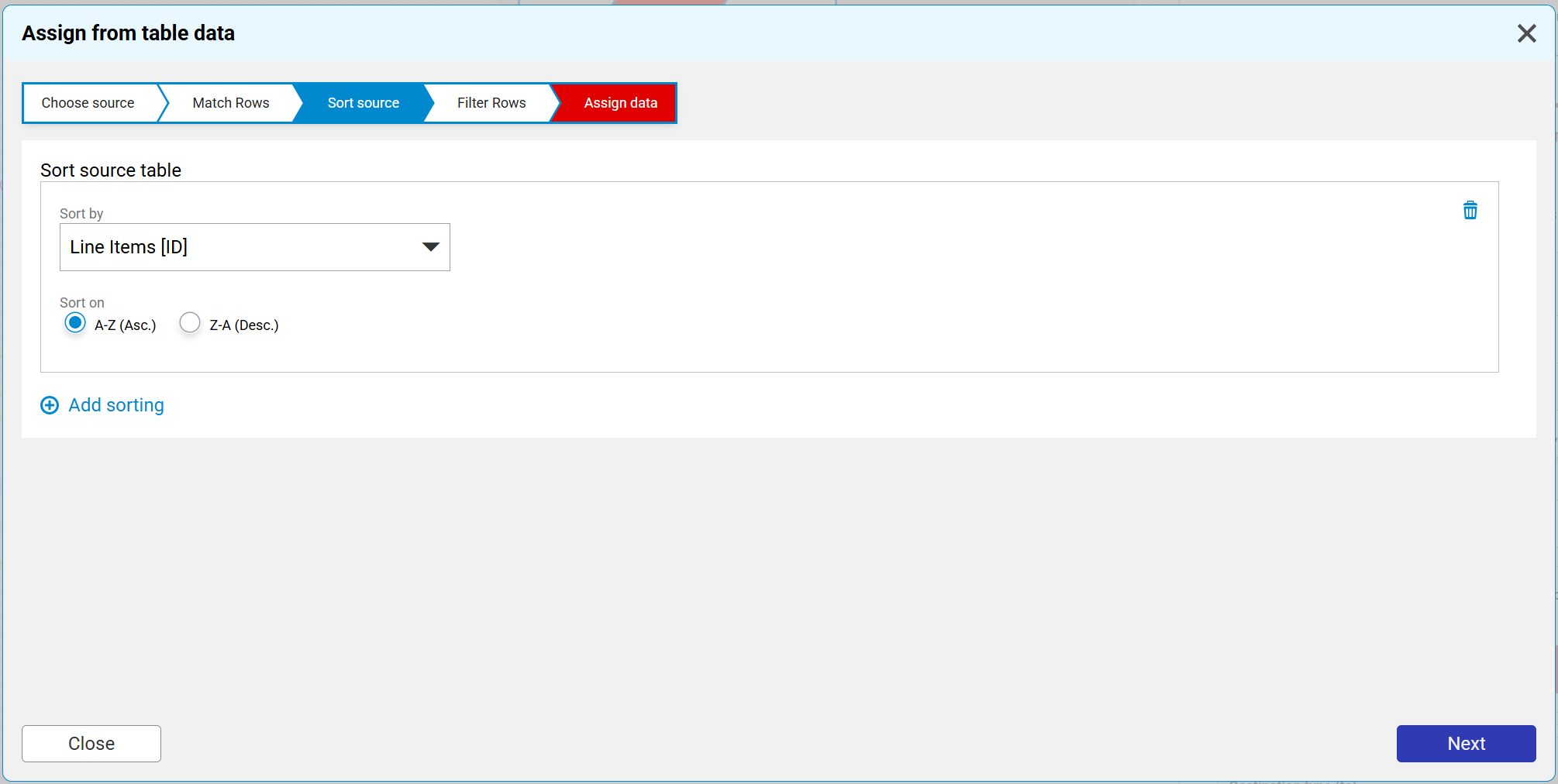
Web-based Workflow Designer: sort options for match code conditions in the tab Sort source
Mapping of table columns has changed
In the Assign data activity, the mapping of table columns has changed.
In the Workflow Designer Desktop App, you first select the entire target table and then define the columns. This additional step is omitted.
In the web-based Workflow Designer, you specify in the first step which columns of the target table are to be edited. Only these selected columns can be mapped to the source columns in the final configuration step.
The screenshot below shows the mapping of table columns in the web-based Workflow Designer. In this example, the Quantity and Unit Price columns were selected in the first step of the Assign data configuration. Only these two are available for mapping on the Assign data tab: .png)
Email notification settings relocated
In the web-based Workflow Designer, Email notification settings have moved to Task > Behavior. They are grouped with reminders and escalation settings:
.png)
Fixed‑value assignments with missing references
Fixed values are removed during the migration of a workflow, if
a value in a user, role, or substitution rule is missing
andthe user, role, or substitution rule is used as a fixed‑value assignment source.
For users, roles, and substitution rules, you are prompted to reselect missing items after migration in the dependency dialog.
For other dependencies as for example file cabinet fields, web services, missing PDFs, the migration fails with an error. Deleted configurations inside Assign To dialogs cannot be recovered once removed.