DocuWare supports Microsoft Entra ID (formerly: Azure Active Directory) as an Identity Provider for single sign-on. Here's how to connect DocuWare to Microsoft Entra ID.
Note that the configuration dialog has slightly changed with DocuWare 7.13; the configuration itself has not changed.
Go to DocuWare Configurations > General > Security and activate the option Enable single sign-on.

Open Entra ID from the Azure Portal. Create a new app registration in Microsoft Entra ID
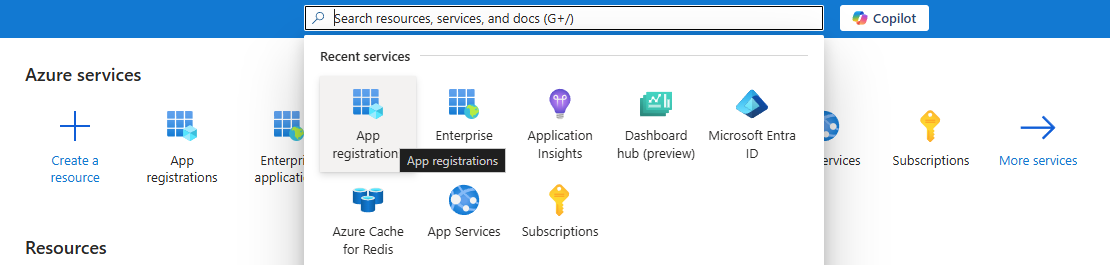
3. Select the supported account types.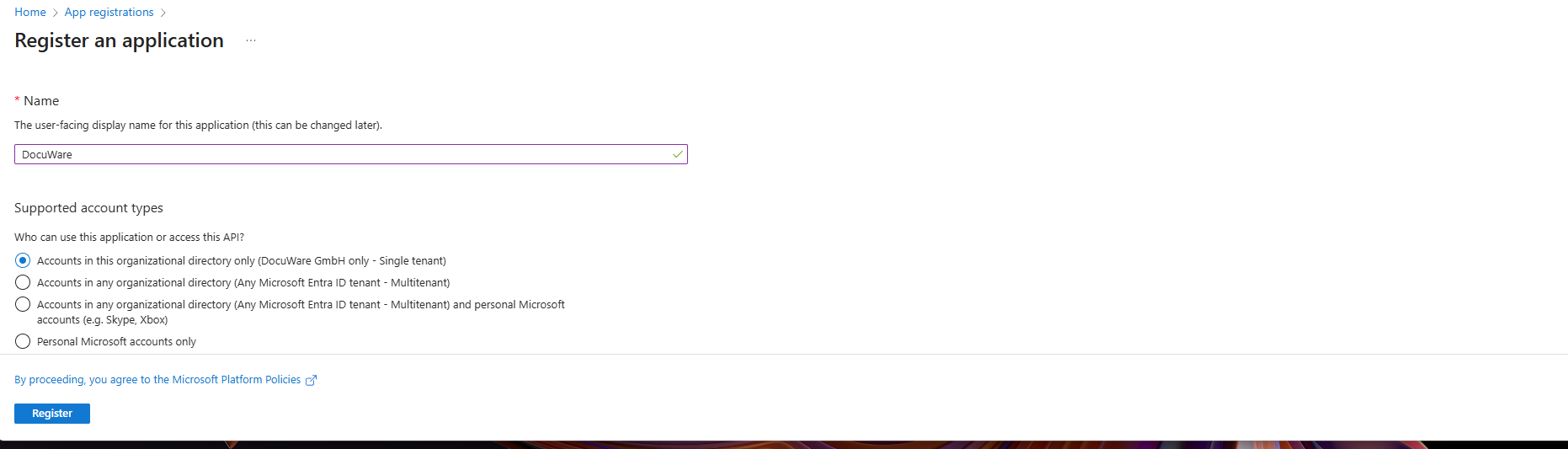
4. Configure the API permissions. The most basic API settings only require Microsoft.Graph with the User.Read Delegated permission and Granted permission status. More advanced API/Permission settings are supported, but not all have been tested fully.
.png)
5. Add a new redirect URI for the newly created app registration.
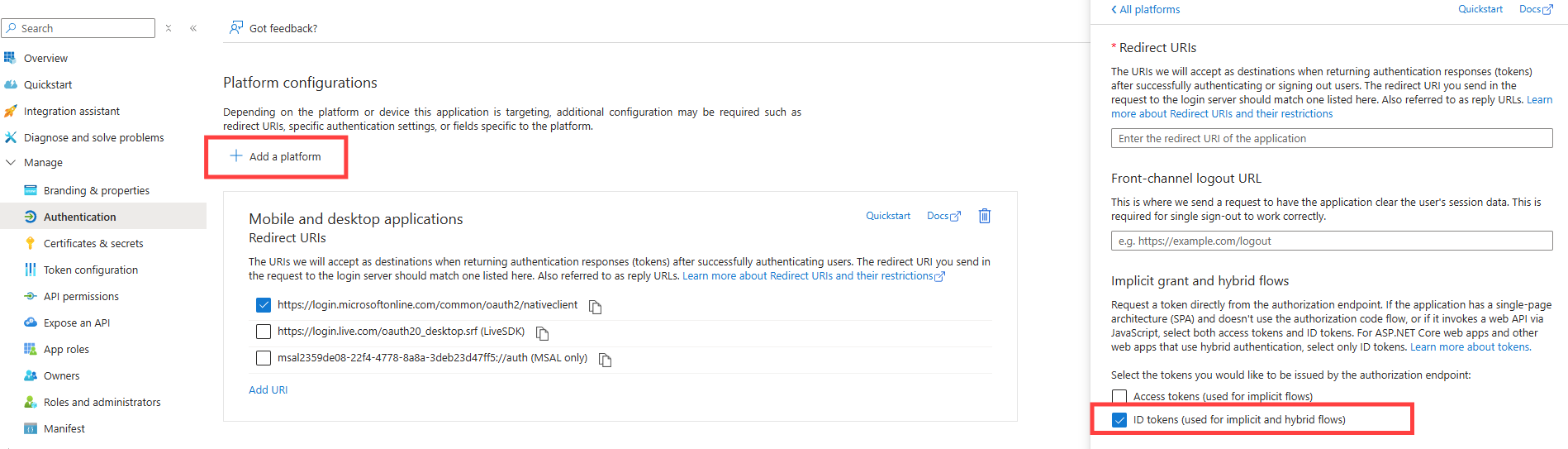
6. Copy the Callback URL from DocuWare Configurations > General > Security > Connection into the field URI (Web) and and activate the option ID tokens.
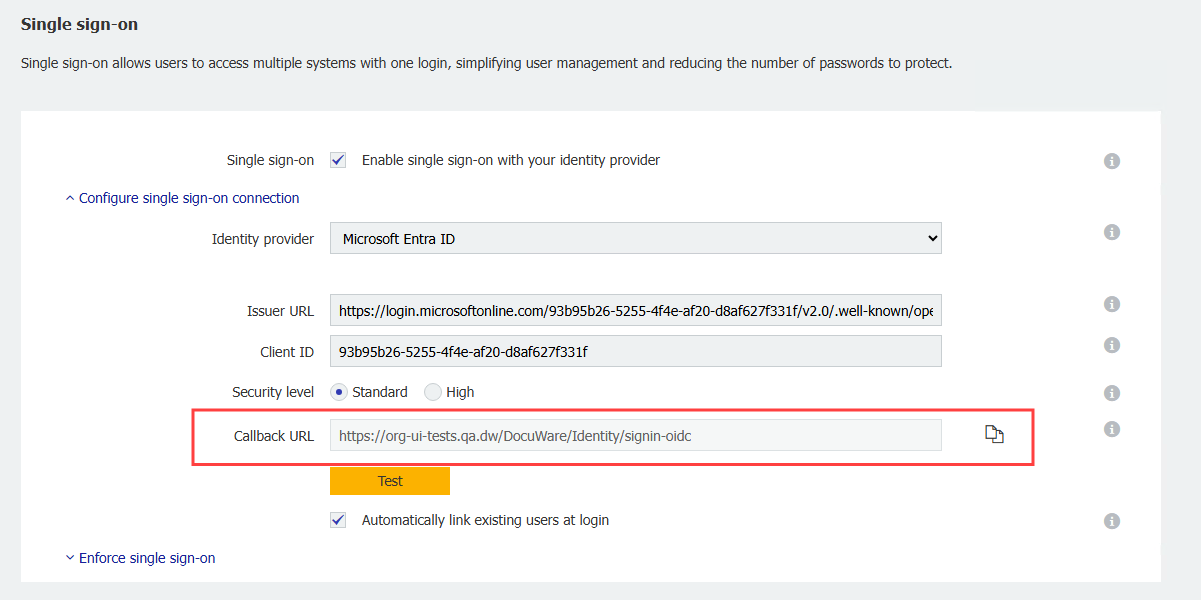
The final result should look like this: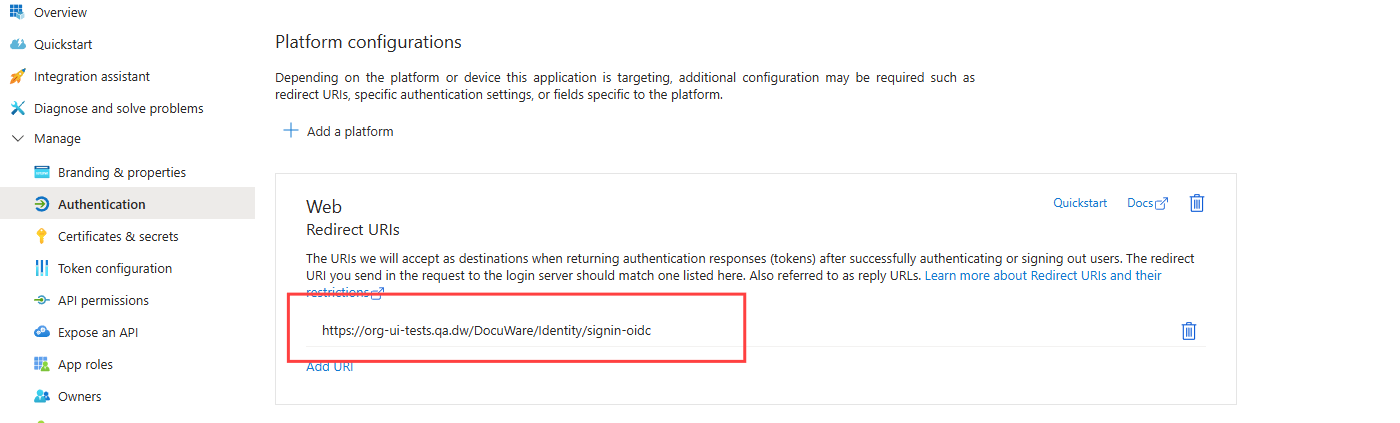 7. Copy the Application (client) ID in the overview of the app registration and copy under Endpoints the URL to the OpenID Connect metadata document and add these in DocuWare in Security > Configure single sign-on connection > For Client ID or Issuer URL.
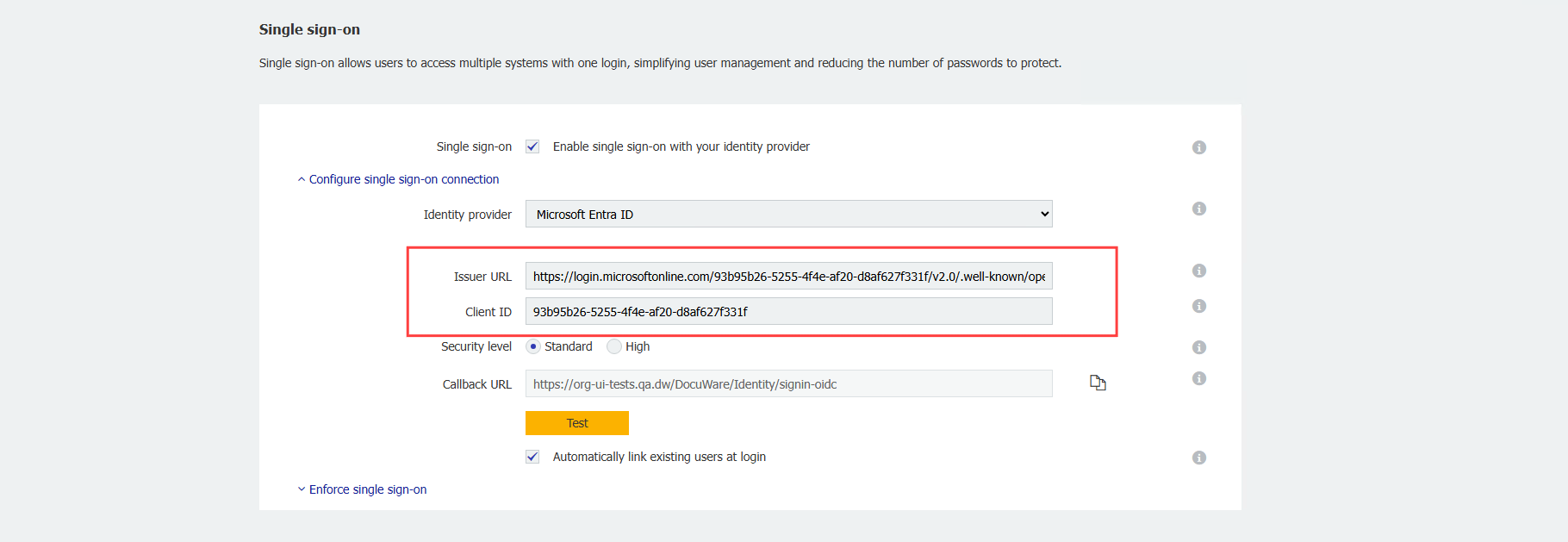
8. Under the Callback URL there is a Test button. This button will open a new parallel tab where the Administrator can enter Microsoft credentials to test if the configuration is successful or not.

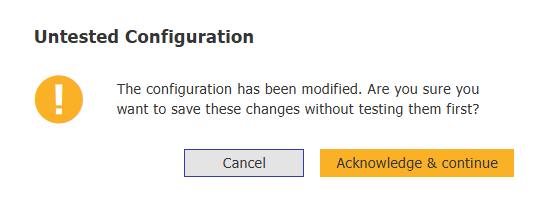
In case you try to save the settings, without testing them first, you will see a warning dialog that is intended to prevent accidental errors. You have to acknowledge the risks that you are taking by saving an untested configuration.
9. After saving the settings, users have the option of logging on with a DocuWare user name and password, as well as single sign-on via Microsoft.
Notes:
Regarding the option “Security level: High"
The default security level for new SSO configurations is set to Standard. The standard security level is sufficient for most use cases.
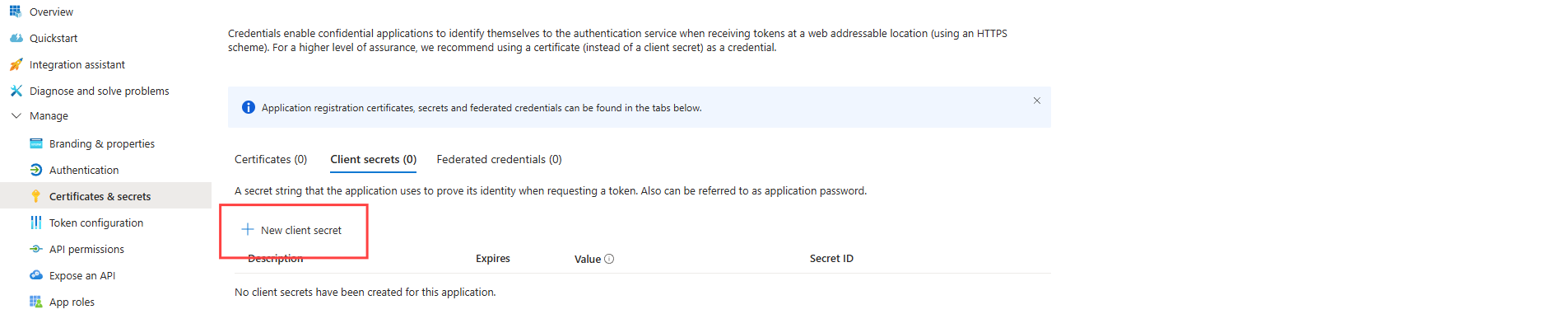
The high security level requires a client secret and is recommended. It can be changed by selecting the radio button located under the Client ID. Once selected the UI will be updated and a new text field will be displayed. The field content is protected from visual hacking.
This Client Secret Key has to be generated in the Entra ID application registration settings in the Certificates and secrets section. The Entra ID Administrator can generate a new client secret. This secret will become invisible once the Entra ID session is closed.
Regarding the option "Automatically link existing users at login"
If this option is activated, the first time a user logs in with single sign-on, DocuWare will search for a suitable existing DocuWare user with the appropriate user name and email address.
The same username and email address must be stored in Microsoft Entra ID and in DocuWare.
The DocuWare user name must correspond to the local part (first part up to @) of the email address of the user in Microsoft Entra ID.
The Microsoft Entra ID user account and the DocuWare user account will only be linked if the user name AND email address match.
Example:
Entra ID user principal name: peggy.jenkins@peters-engineering.net
DocuWare username: peggy.jenkins
DocuWare email address: peggy.jenkins@peters-engineering.net
It is not mandatory for DocuWare users to be created via the User Synchronization app in order to use single sign-on. Even if you create new users manually or import them via an interface, the external user account and the DocuWare account are automatically compared. As soon as a user has been assigned, the user is recognized from this point on based on their external object ID. This means that even if the email address and/or the user name no longer match, the user is still recognized.
Enforcing single sign-on
Read more about enforcing single sign-on.