You can now also index and store your DocuWare Scan and Import documents with DocuWare IDP. What's more, IDP Monitoring provides a clear overview of the job processing statuses.
Application
Your company uses DocuWare Scan and Import to scan paper invoices and import PDFs.
Benefits
Profit from DocuWare IDP when using Desktop Apps
Status tracking of Scan and Import jobs processed with IDP
Further automation
Here's how
Select the IDP configuration in the Desktop Apps
To use IDP configurations in Desktop Apps, they must first be set up in DocuWare Configurations under DocuWare IDP.
In Desktop Apps, you have two options under Scan and Import in the configuration selection:
.png)
If you want the document to be classified first and the optimal extraction model to be selected based on the result, choose Automatic selection (DocuWare IDP configuration).
If no classification is required for the document, you can select any configuration whose name ends with (IDP).
Track the processing status in IDP Monitoring
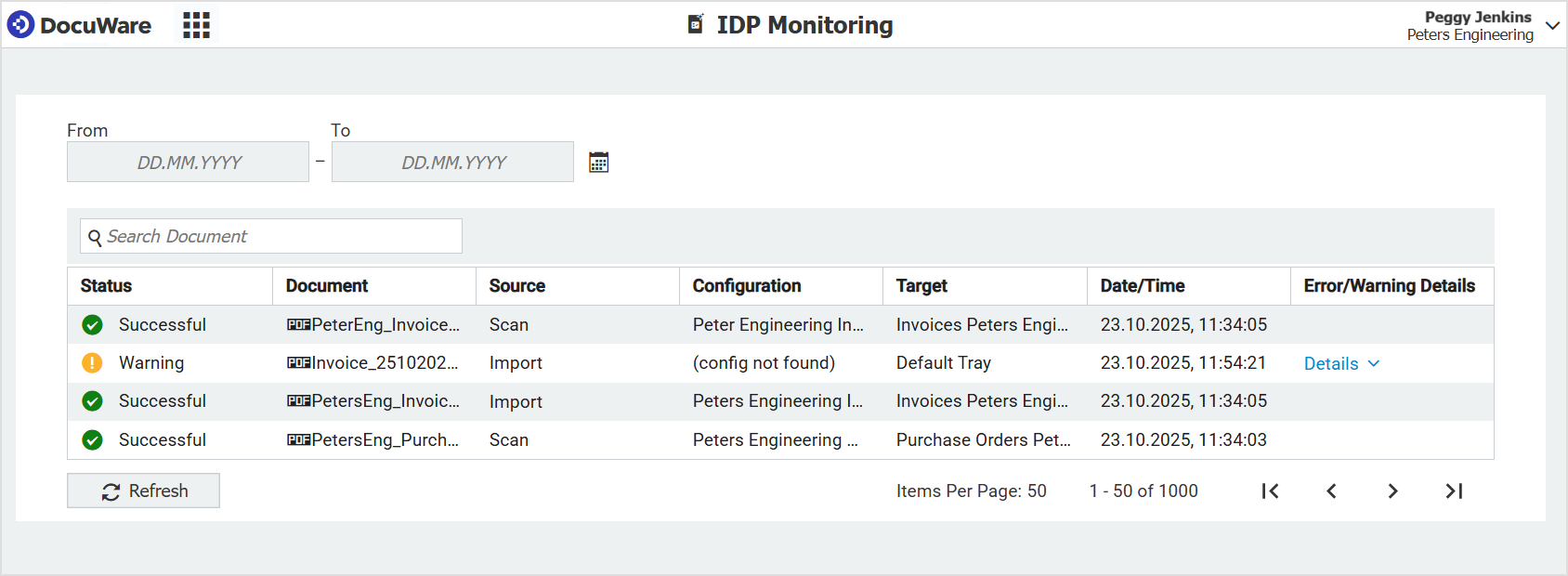
In the new IDP Monitoring section of DocuWare Configurations, you can conveniently track the processing status of documents from Scan and Import. If a job fails, it can be restarted using the Retry button.
IDP Monitoring is available to all DocuWare Cloud users who have subscribed to DocuWare IDP. Currently, a maximum of 1,000 lines are displayed, with each line corresponding to one job. The overview offers a resettable date filter and a file name search bar. Users can only see their own jobs, not those of the entire organization.
Read more about IDP configuration.