To install DocuWare as an on-premise system, you need the DocuWare software package in the form of the ZIP file and your license file, which you have received by email from DocuWare.
During installation, you have to select at least one of four roles for the server machine on which you are installing it. The role determines the tasks that the server machine should perform in the DocuWare system.
Frontend role: Providing services for clients and users, includes Web Client, Platform Services, and DocuWare Configuration.
Backend role: Providing services for background processing, e.g. workflows, processes, and email capture.
Full text role: Providing services for full-text processing.
Messaging service role: Providing services for server and application communication.
You also have to select a setup mode:
New installation: to install a completely new DocuWare system with a new database.
Extension: to install additional server machines for an existing DocuWare system with an existing database. For example:
- to extend the existing system to another machine.
- to restore the system after a machine failure (if there is a database)
- to update DocuWare while moving to a new serverUpdate: to update or reinstall the DocuWare components on the current server machine and to add one of the above roles to an existing server machine
Uninstall: to uninstall all DocuWare services and applications from the current server machine
Installation comprises several steps. Every step can be repeated if it fails. The setup is logged in detail. The corresponding log files can be found in the directory <%AllUsersProfile%\DocuWare\SetupLogs>.
DocuWare services run under Windows Users. To be able to specify the Windows User(s) as part of the DocuWare setup, you should first create them.
Information about individual setup options can be obtained directly from within the dialog via the info icons.
Information on DocuWare version 7.13
Find a complete list of all the new features of DocuWare version 7.13 in the DocuWare Knowledge Center iin the What's new in DocuWare version 7.13 section.
Before upgrading to version 7.13, please check the extent to which the changes with DocuWare version 7.13 are relevant to your system.
For the update to DocuWare version 7.13 you need at least DocuWare version 7.8.
If you do not have it, please follow this update path:
Versions 6.6 - 6.11 > Update to 6.12 > Update to 7.1 > Update to 7.4 > Update to 7.9 > Update to 7.13
Please also check the system requirements.
To implement the update, please contact your authorized DocuWare partner. This is especially recommended if you are not updating directly from the previous version.
Check your DocuWare Platform configurations
Most of the configurations of the DocuWare Platform are moved from the file Web.config to the DocuWare.Platform.Web.dll.config
For more information, see also the Technical Release Notes for version 7.11.
For details on the configuration files, see the setup help for DocuWare verison 7.11.
Windows User for DocuWare Server
DocuWare servers must be able to log in to the Windows system. For this, they require a Windows User with local administrator rights. During setup, you must specify a corresponding Windows User; either choose an existing one or create a new one. We recommend using a special Windows User exclusively for DocuWare services.
Ports used
DocuWare uses the following ports by default:
Authentication Server: 9000
Full-text server: 9012
Transformation Service: 5050
Server Messaging Service: 6379
If no other programs on the server machines used communicate via the preselected ports, no change is necessary.
DocuWare Server Messaging
In DocuWare 7.13 server-to-server messaging is changed to an approach based on the Redis protocol (RESP). This is called DocuWare Server Messaging. It replaces the MSMQ-based communication used so far as this technology is no longer supported by Microsoft.
The change effectively is twofold:
The DocuWare components participating in DocuWare Server Messaging are the RESP-protocol clients. They require a connection string to access the RESP-based Messaging service. You will be asked for this connection string during installation.
Communication is backed by a service providing the server-side implementation of the RESP-protocol. For this you have two options:
Install DocuWare’s Server Messaging role on one machine. The messaging component installed by this role is based on Microsoft’s implementation of the Redis-protocol called Garnet. The implementation only supports a single instance of the service.
If you want to overcome this limitation, for example if you want to provide a failsafe setup, go with the next option.Provide your own Redis-cluster or just use your existing one. Use an existing Redis-cluster or prepare a new one to use it with DocuWare.
Generally, you will need a connection string for installation or updating DocuWare on-premises 7.13 with Server Messaging. The string contains all the information required for a client application to connect to the Redis database.
Notes on upgrading using your own Redis cluster
Prepare the connection string from your own Redis instance to enter it when prompted by the DocuWare setup:
Connection string format: ‘{host}:{port},password={your password},ssl={true|false},sslProtocols={protocol}’
Additional {key}={value} pairs can be added with commas. Here you will find more information about the supported key-value pairs.
Password, SSL and SSL protocols are optional but recommended.
Example: ‘localhost:6379,password=xxxx,ssl=True,sslProtocols=Tls12’
Notes on upgrading using the DocuWare Server Messaging Service
Begin with the server that will host the new Server Messaging role. During setup, you’ll be prompted to supply the required parameters; the installer then generates the connection string, encrypts it, and writes it to two locations:
in a database table for later transfer to other server machines.
in the configuration file
%AllUsersProfile%\DocuWare\ServerConfig\dwmachine.config
allowing all DocuWare services to use Server Messaging without having to read the database.
The password in the connection string may contain only ASCII characters. If the string includes an equals sign (=), the current version of DocuWare.Setup.Server.Cmd.exe cannot write it to dwmachine.config; this limitation may be removed in a future release.
After the initial server update, you won’t need to enter the connection string again. Every additional server you update retrieves the string from the database automatically. You only have to confirm the dialog.
How-to:
First, install the new ‘Server Messaging’ role. During an upgrade, be sure to select the Server Messaging Service role explicitly— the installer updates only roles that already exist and will not add new ones unless you choose them manually.
.png)
The default TCP port for the Server Messaging service is 6379.
.png)
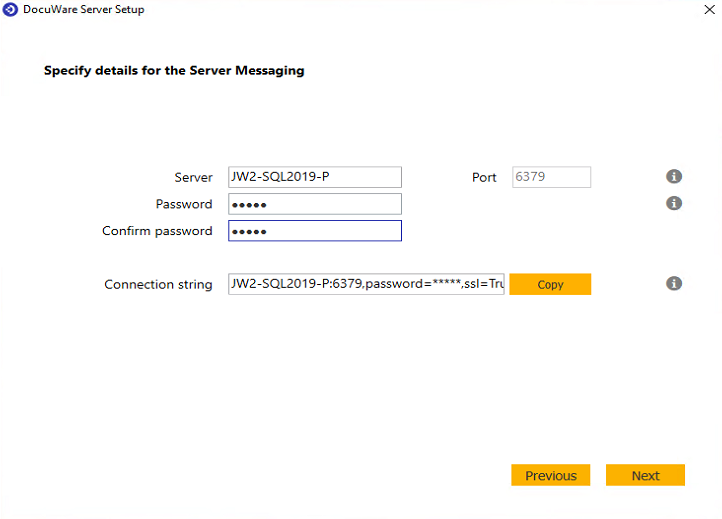
Set the password.
The details you just entered are used to create the connection string. In the on-screen preview, the password is hidden. Click Copy to place the complete connection string—including the unmasked password—on the clipboard so you can paste it on another server right away.
Notes on new installation using the DocuWare Server Messaging Service
During a new installation, you can decide whether to install the front-end role and the Server Messaging role on the same machine or on separate machines.
Both roles on the same machine: Start with that machine. Every Server Messaging step is identical to the procedure described under Upgrade using DocuWare Server Messaging Service.
Roles on different machines:
Start with the machine that will host the Front-end role.
When the setup wizard prompts for the connection string, stop and leave the “Connection String” page open.
On the second machine, launch DocuWare Setup and install the Server Messaging role.
Follow the instructions in the Upgrade using DocuWare Server Messaging Service section: the setup writes the connection string to both the database table and the dwmachine.config file. Finish the installation on this machine.
Return to the Front-end server. In the Connection String dialog, click Back once and then Next. The wizard now reads the string from the database table. Confirm it so the string is copied to dwmachine.config,
Continue and complete the front-end installation.
Additional notes:
The database table is accessed only by the setup program and has no effect on a running system.
All DocuWare machines obtain the connection string exclusively from dwmachine.config.
Since the entry is encrypted, direct editing is not possible. However, in dwmachine.config, you can set the encrypted flag to false and then open and edit the entry in an editor.
Upgrade Simulation
DocuWare setup offers an upgrade simulation for the system database (DWSYSTEM):
It is checked whether the database of your existing DocuWare system can be updated. The productive DocuWare system will not be changed.
We recommend running the simulation to avoid problems during setup and system downtime. If the simulation is successful, you may go with the system upgrade. If errors are thrown, you should cancel the setup and contact your DocuWare sales partner or DocuWare Support.
Notes:
Discontinuation of Oracle as a supported database: With DocuWare 7.10 Oracle as a database is not supported anymore. If the DocuWare Server Setup detects an Oracle database server, the update is aborted with an error message. DocuWare will offer a migration from an Oracle to a Microsoft SQL Server database.
MySQL databases earlier than version 8.0 are no longer supported. The DocuWare 7.13 setup will stop if it detects a MySQL database prior to version 8.0 and will not continue until the database is upgraded.
If you are using a MySQL database server and run the update by remote, none of the upgrade simulation options are available.
Wildcards in IIS configuration not supported: Internet Information Server 10 (IIS 10) allows the use of wildcards in the host name binding of the website configuration. Such wildcards are not supported by DocuWare. To ensure that wildcards are not used, the DocuWare Server Setup prevents the user from selecting the websites configured with wildcards during any installation and displays an error message.
As of DocuWare Version 7.8, Dell EMC Centera and Dell EMC ECS systems are no longer supported as storage media. If such a storage location is found during an upgrade, the setup is aborted and a corresponding error message is displayed. A simulation can be run despite the error message.
Customer Experience Improvement Program
Using the Customer Experience Improvement Program (CEIP), DocuWare would like to gain more information about use of DocuWare software for further improving user-friendliness and customer experience, from which you can then also benefit.
When setting up/upgrading, the "Customer Experience Improvement" component is installed. This creates an additional database table called DWAnalytics in the database used for your DocuWare system in which the statistical information is stored. You can also see the information in the database table using the normal database tools.
Even if you do not take part in CEIP, the "Customer Experience Improvement" component is installed, the database created, and the corresponding information written there. However, the data are then not transferred to DocuWare.
More information about CEIP, e.g. what kind of data is collected?
Supported versions: DocuWare on-premises 7.13
.png)